




In the early days of the internet, Virtual Private Networks (VPNs) were niche tools for corporate travelers and high-level techies. Today, they are everywhere. Whether you use one to bypass regional streaming restrictions, protect your privacy on public Wi-Fi, or connect to your office server, VPNs are now standard on millions of iPhones.
However, a VPN is a heavy-duty piece of software. It intercepts every single packet of data leaving your device and reroutes it through an encrypted tunnel. When that tunnel breaks, your entire iPhone experience can grind to a halt.
Common “Red Flags” that your VPN is the culprit:
- Websites won’t load: Your Wi-Fi says it’s connected, but Safari is a ghost town.
- Battery Drain: Your iPhone is running hot and losing 20% of its charge in an hour.
- Location Errors: You are in New York, but your weather app is convinced you’re in Tokyo.
- App Crashes: Financial apps and streaming services often “ban” VPNs, causing them to freeze on startup.
If you’re facing these issues, it’s time to take control. As of January 2026, here is the definitive guide to disabling, stopping, and deleting your iPhone VPN.
1. The “Soft” Stop: Disconnecting the VPN
If you just need to access a local website or improve your speeds for a quick video call, you don’t need to delete the app. You just need to disconnect.
Method A: The iOS Settings Toggle
- Open your Settings app.
- Locate the VPN toggle (usually found right below Bluetooth).1
- Flip the switch to Off.
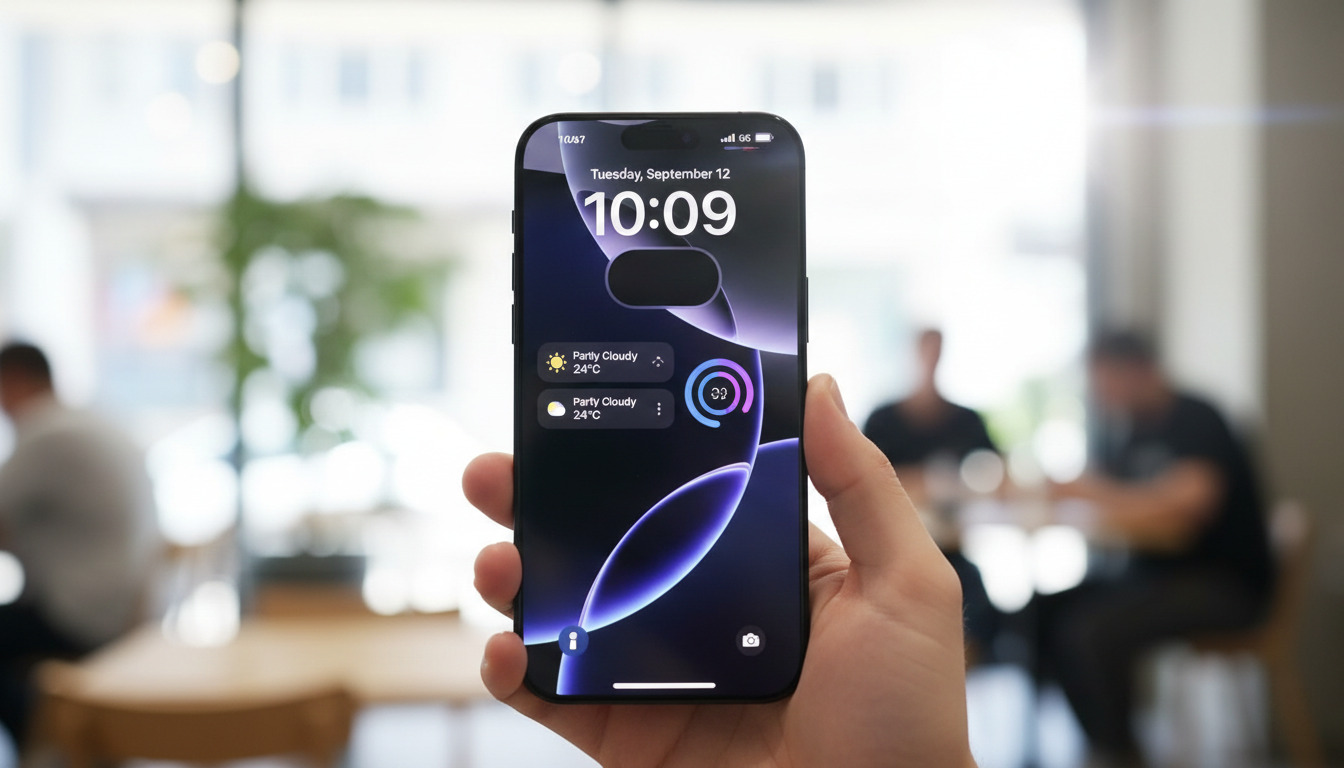
- Check the top-right corner of your screen (or swipe down for Control Center). If the small “VPN” icon is gone, you are successfully on your local network.2
Method B: The In-App Kill Switch
Many modern VPN apps (like NordVPN, ExpressVPN, or Surfshark) “own” the connection. If you turn it off in Settings, the app might fight back and turn it right back on.
- Open the specific VPN app you installed.
- Tap the large Disconnect or Power button.
- Pro Tip: Look for a “Pause” feature. Some apps allow you to pause for 5, 15, or 60 minutes, after which it automatically reconnects. This is perfect if you just need to check your bank account.
2. The “Hard” Stop: Disabling “Connect on Demand”3
Does your VPN feel like a zombie? You turn it off, and three seconds later, it’s back on. This is usually caused by a feature called Connect on Demand.4 This setting tells your iPhone, “If I ever have an internet connection, make sure the VPN is active—no matter what.”
How to kill the auto-reconnect:
- Go to Settings > General.
- Tap VPN & Device Management.
- Tap VPN.
- Find your active VPN and tap the blue “i” (info) icon next to it.5
- Toggle Connect On Demand to OFF.
Now, your VPN will stay off until you manually tell it to work.
3. The Complete Removal: Deleting the App and Profile
If the VPN is buggy, or you’ve finished your trip abroad and no longer need it, a simple disconnect isn’t enough. VPNs leave “footprints” in your system settings that can continue to cause network lag even if the app isn’t running.
Step 1: Delete the App
Find the VPN app on your Home Screen or App Library. Long-press it, select Remove App, and then Delete App.
Step 2: Remove the Configuration Profile (Crucial)
This is where most users get stuck. Deleting the app doesn’t always delete the permission the app had to control your network.
- Navigate to Settings > General > VPN & Device Management.
- Under “VPN,” you may see a “Configuration Profile.”6
- Tap the profile (e.g., “NordVPN Profile”).7
- Tap Remove Profile or Delete VPN.
- Enter your iPhone passcode to confirm.
4. Troubleshooting: “The VPN is off, but my internet is still dead!”
This is a common “side effect” known as a DNS Leak or a Hanging Tunnel. Your iPhone still thinks it should be sending data to a VPN server that no longer exists.
The Fixes (in order of ease):
- Airplane Mode Reset: Toggle Airplane Mode ON for 10 seconds, then OFF. This forces your iPhone to search for a new, fresh IP address from your carrier or Wi-Fi.
- The Force Restart: Quickly press Volume Up, then Volume Down, then hold the Side Button until the Apple logo appears. This clears the system cache that might be holding onto old VPN data.
- Reset Network Settings: This is the “Nuclear Option.”8
- Go to Settings > General > Transfer or Reset iPhone > Reset > Reset Network Settings.9
- Warning: This will delete all your saved Wi-Fi passwords. Only do this if you are truly stuck.
5. Why You Might Want to Keep it (The Risks of Disabling)
Before you delete that VPN forever, remember why you installed it. Disabling your VPN comes with three primary risks in 2026:
- Public Wi-Fi Vulnerability: If you are at a Starbucks or an airport, a VPN is your only shield against “Man-in-the-Middle” attacks where hackers intercept your data.
- ISP Throttling: Some internet service providers slow down your connection if they see you are streaming high-def video. A VPN hides your activity, often preventing this specific type of lag.10
- Privacy Logging: Without a VPN, your ISP keeps a log of every website you visit.11 If you value your digital footprint being private, keep the VPN active during casual browsing.
Summary Table: Which Action Do You Need?
| Issue | Recommended Action | Result |
| Slow Speeds / One-time access | Disconnect in Settings | Temporary; easy to turn back on. |
| VPN turns itself back on | Disable Connect on Demand | Stops automatic “zombie” connections. |
| App is buggy / No longer used | Delete App & Profile | Complete removal of VPN software. |
| Internet is broken after delete | Reset Network Settings | Restores factory default network paths. |